Every teacher knows the silence.
You ask a question. Thirty seconds ago you explained the answer. Six faces look back at you. One hand goes up, and it is the same hand that always goes up. You take the answer, it is right, you say "good", and you move on having learned precisely nothing about the other five.
A live lesson on Tutorio is built to break that silence. The rule is simple: you drive, and every student's screen follows. You teach from a laptop or a shared screen. They answer on the phone in their hand.
These screenshots come from one short GCSE Drama lesson with a class of six. Here is what happened.
1. The names go up
You choose what to teach on the Deliver page and press Go Live. Everyone in the class gets a notification and is pulled into the lesson. As each one arrives, the big screen celebrates them.
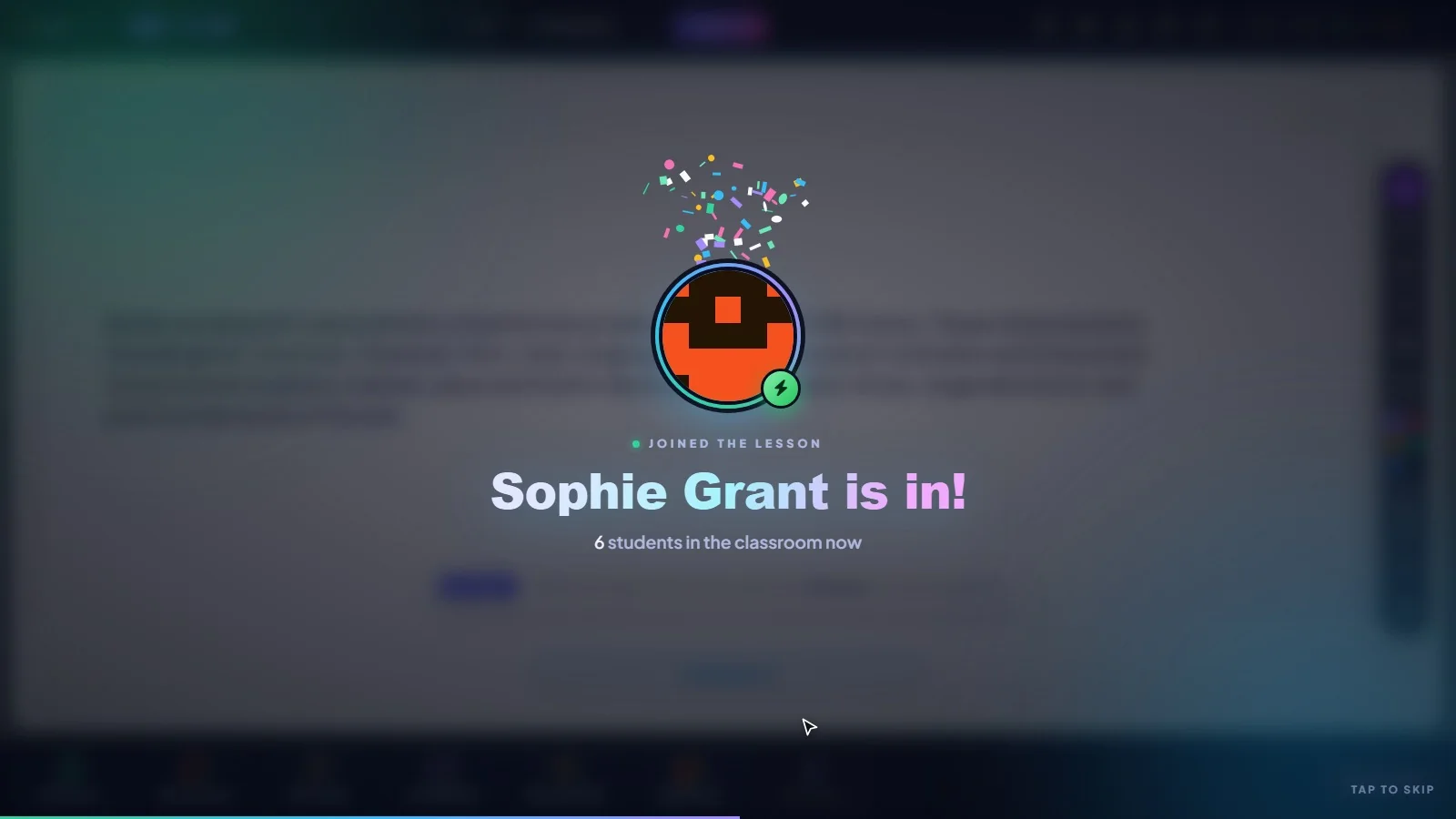
We nearly cut this. It is a second and a half of animation that teaches nobody anything. Then we watched a class see their own names appear, one by one, and realised it was doing the job of a register, an icebreaker and a "phones out, please" all at once.
2. Teach first. Then the question.
Lessons are made of cards, and the teaching cards come before the questions. When a question does come up, your screen shows it with no answer marked, and a banner tells you exactly what is going on.
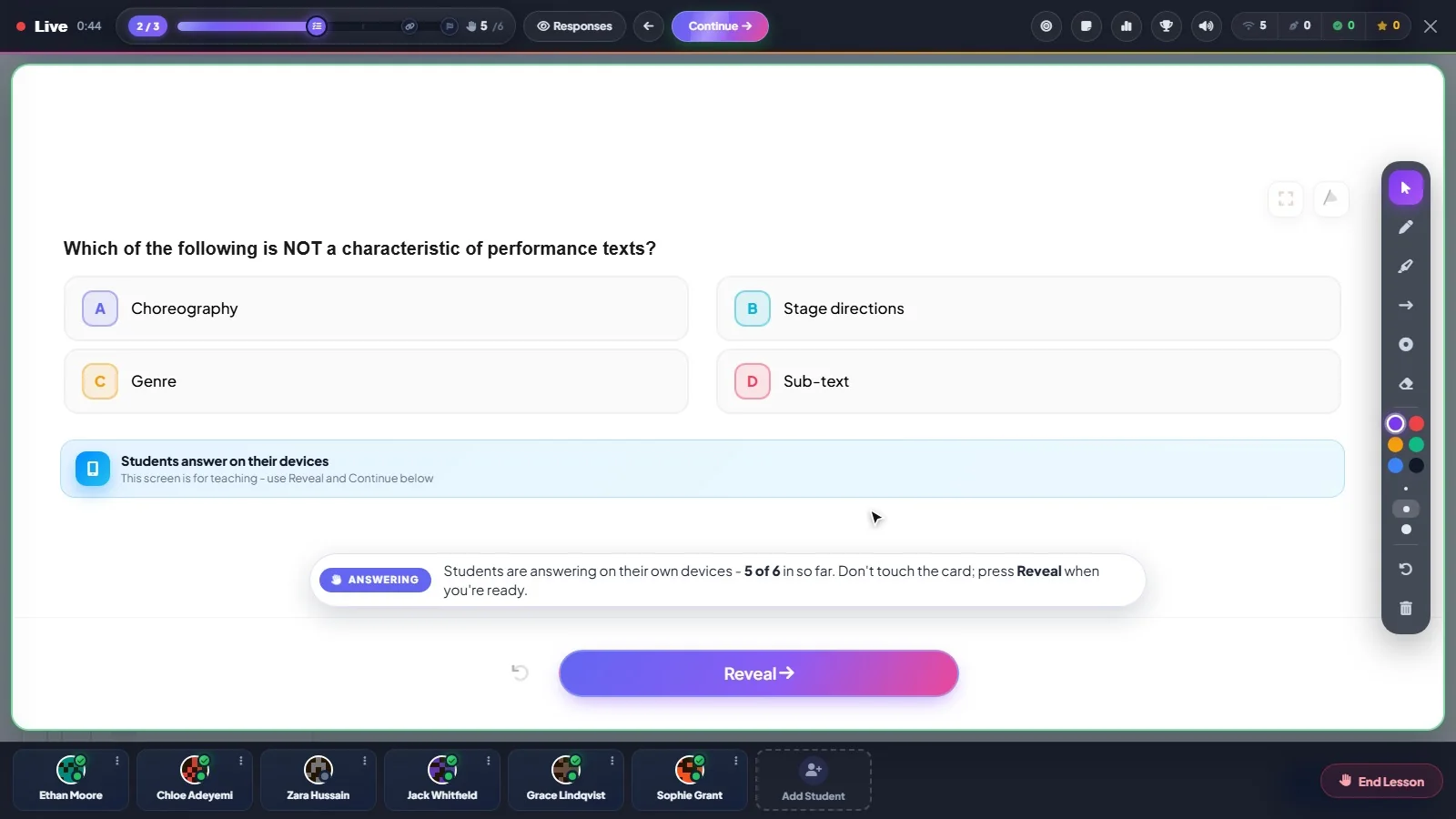
Read the banner in that screenshot: students are answering on their own devices, five of six in so far, and do not touch the card. Along the bottom is your class. A green tick means that student has locked in an answer.
So you can see who is still thinking, and you can wait for them. Out loud, the fastest student sets the pace. Here, nobody gets talked over.
The toolbar on the right is for drawing. Circle the word NOT. Underline a clue. Sketch a stage. Students see each stroke as you make it.
3. The moment that changes the lesson
Now press Responses.
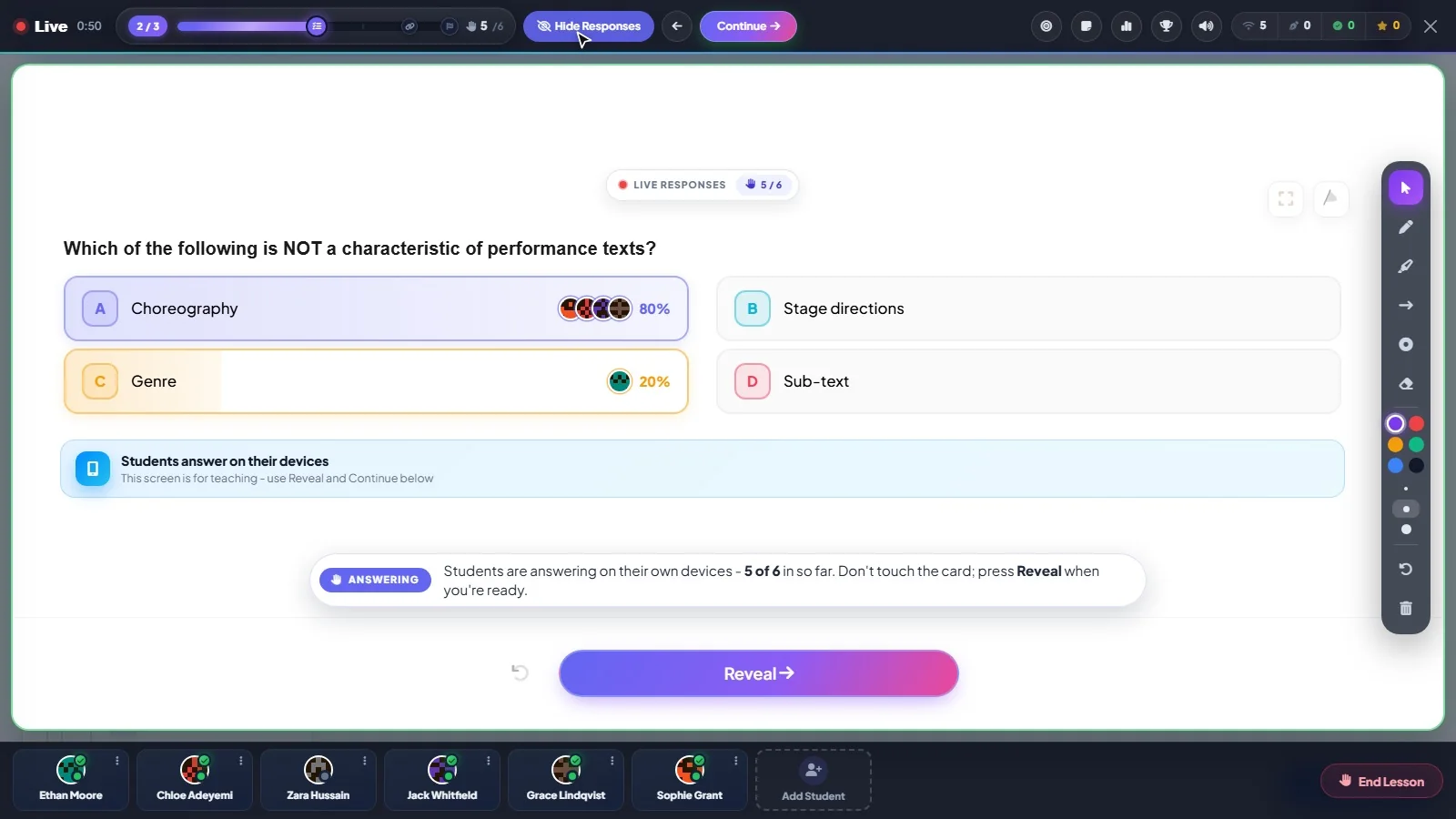
This is the screen we would put on a poster. Before you have given anything away, you can see who picked what: faces stacked against each option, with the share of the class beside them.
Eighty percent on one answer, twenty on another. That is not a class that needs telling the answer. That is a class that needs to argue about it.
"Four of you said Choreography and one of you said Genre. Somebody convince me." That is a better two minutes than any explanation you had planned.
And if all six are right, you skip the speech and move on. If one student is alone on the wrong answer, you know exactly who to catch quietly afterwards, without ever having made them wrong in front of the room.
Anything that gives the answer away sits behind a toggle, so you can mirror or screen-share the tutor view without spoiling the question for the class.
When you are ready, Reveal shows the right answer on every screen and locks answers. Only revealed questions count for points, so a question you decide to skip never costs anyone.
4. Confetti, because it is earned
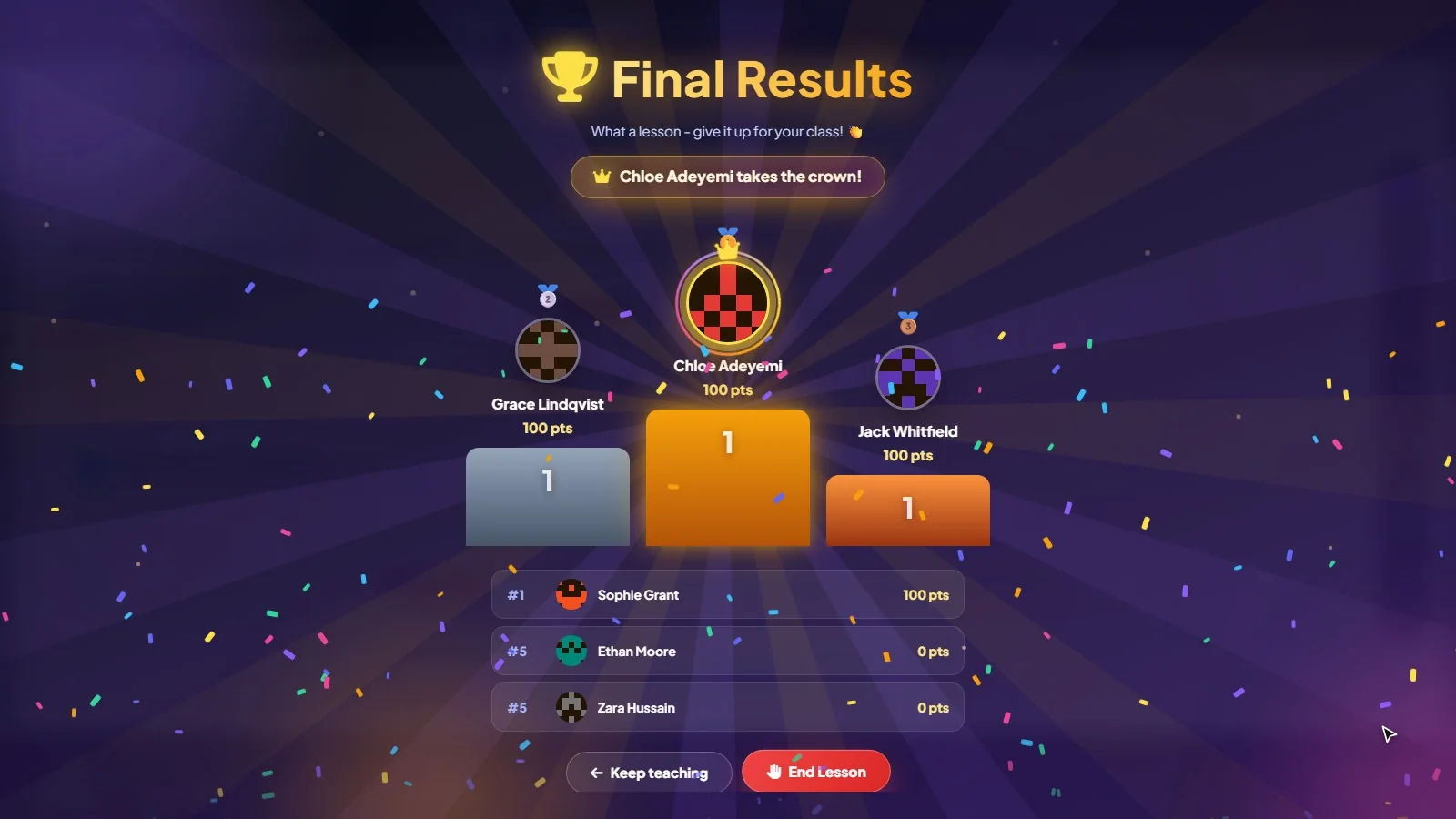
The lesson ends on a podium. Top three raised up, everyone else listed underneath, a crown for first place and a generous amount of confetti.
There are two buttons at the bottom, and we are fond of the first one: Keep teaching. Because sometimes the class looks at the podium and somebody says "one more", and that is not a moment to waste.
What you are left with
When you do end the lesson, it saves a summary: every revealed question, and what every student answered. That feeds each student's progress, and it moves the class's teaching line on to Review. Forget to end it and it ends itself after a while, summary intact.
A few practical notes, since people ask:
- Nothing to set up on the day. Students use the account and the app they already practise on.
- It does not cost extra. Live lessons do not use AI credits.
- No dead air. The next card is loaded before you ask for it.
A live lesson is one way to fill an hour. If you want the shape of the whole hour, recall questions to homework, here is how we would structure a tutoring session.
Back to the silence
The hand that always goes up is still welcome. It is just no longer the only information you have. You asked six people a question and you got six answers, privately, in about twenty seconds. What you do with that is the teaching, and that part is still entirely yours.
Questions people ask
How do students join a live lesson?
When you press Go Live, everyone in the class gets a notification and is pulled into the lesson. They use the account and the app they already practise on, so there is nothing to set up on the day.
Can I see each student's answer before revealing the right one?
Yes. Switch on Responses and each student appears against the option they chose, with the share of the class beside it. Students see nothing until you press Reveal.
Is it safe to show the tutor screen on a projector?
Yes. Anything that gives the answer away sits behind a toggle, so you can mirror or share the tutor view without spoiling the question.
Do live lessons cost extra?
No. Live lessons are included in every tutor plan and do not use AI credits.
What is saved when the lesson ends?
A summary of every revealed question and what each student answered, which feeds each student's progress. A lesson you forget to end closes itself after a while, summary intact.

Written by the Tutorio team. We build Tutorio, so these posts describe the product as it is today. Every screenshot is a real capture of the app, and anything that changes gets an updated date. Spotted something out of date? Tell us.